Automode
Automode makes sure your agent asks Straion for your rules in every session. Without it, the agent only asks when you use one of Straion’s skills (e.g. /straion-implement).
You don’t change how you work. You give the agent a task, and it looks up the rules for that task before it writes code. If it skips that step, Straion sends it back.
What you’ll notice
Most of the time, nothing. The agent looks up the rules on its own and gets on with the task.
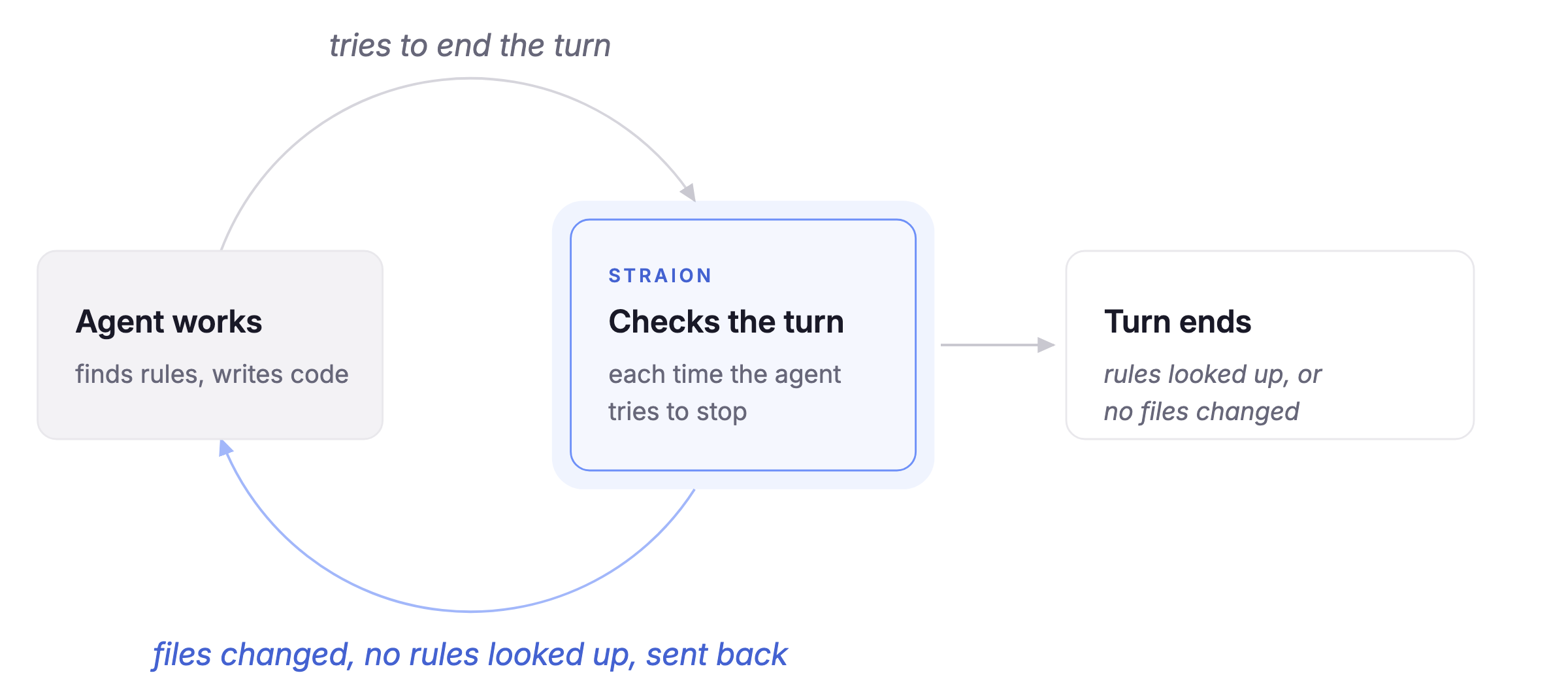
Every so often, the agent changes code without looking anything up. Then it doesn’t hand the work back to you yet. Straion sends it back once to find the rules and check its change against them. You see this note:
Straion sent the agent back: files changed without a find-rules call.If the agent stops again without looking up the rules, Straion lets it stop and tells you:
Straion asked twice; the agent stopped without running find-rules.A few things never trigger it:
- Questions. If the agent only answers a question and doesn’t touch your files, it isn’t sent back.
- A second try. Straion sends the agent back only once, so your agent never gets stuck.
- Files outside your repository. Automode only watches the git repository you’re working in.
Every rule search lands in the audit trail. So for any session, you can see whether the agent looked up your rules.
Turn on Automode
Prerequisites
- The Straion CLI and the Straion plugin for your coding agent. See Getting Started.
- A project in a git repository.
Step 1: Turn it on
Pick where Automode runs.
For one repo. Run this in the repo’s root folder:
straion config automode trueThe setting covers that folder and every folder inside it. It’s saved in ~/.straion/config.json on your machine, not in the repo. Your teammates aren’t affected.
For every repo on your machine:
straion config --global automode trueFor everyone in your organization. Set the STRAION_AUTOMODE_ENABLED environment variable to 1, for example in your coding agent’s managed settings. Developers can’t edit those.
Step 2: Start a new session
Open a new session in your coding agent. Automode starts with the next session, not one that’s already open.
How the settings work together
Straion checks these in order and uses the first one that’s set:
- The
STRAION_AUTOMODE_ENABLEDenvironment variable. - The repo setting. If you set it in nested folders, the one closest to where you work wins.
- The global setting.
- If nothing is set, Automode is off.
So the repo setting beats the global one, in both directions:
- On everywhere, off in one repo. Run
straion config --global automode true. Then runstraion config automode falsein that repo. - Off everywhere, on in one repo. Run
straion config automode truein that repo only.
To remove a repo setting and fall back to the global one, run straion config --unset automode in the repo. To remove the global setting, run straion config --global --unset automode.
Environment variable values
| Value | Result |
|---|---|
1 or true | On, whatever your config says |
0 or false | Off, whatever your config says |
| Empty or not set | Your repo and global settings apply |
| Anything else | Off |
A typo in the value turns Automode off, never on.
Check whether Automode is on
Run this in your repo:
straion config automodeIt prints the setting that applies in this folder, from your repo and global settings. If neither is set, it prints nothing. To see all settings at once, run straion config list.
Troubleshooting
If the agent changes code without looking up your rules and Straion doesn’t send it back, check these:
- The session was open before you turned Automode on. Start a new session.
- The environment variable turns it off.
STRAION_AUTOMODE_ENABLEDis set to0,false, or a value with a typo. Check your coding agent’s managed settings. - You set the repo setting in a subfolder. It only covers that subfolder. Run
straion config automode trueagain in the repo’s root folder. - You’re working outside a git repository. Automode only watches files inside one.
- The agent didn’t change any files. Questions and answers never trigger Automode.
What Automode checks
Automode checks one thing: did the agent look up your rules before it changed code?
It doesn’t check:
- whether the agent searched for the right task
- whether the code follows the rules it found
The audit trail covers that part. It shows whether the agent followed each rule, and who approved any exceptions.
Automode works with every audit trail setting.