SCIM provisioning
Straion supports automatic user provisioning through SCIM 2.0, letting your identity provider (IdP) manage Straion accounts for you instead of inviting people manually:
- Assign someone to the Straion app in your IdP → their Straion account is created and added to your organization.
- Update their profile in the IdP → their name and email stay in sync.
- Unassign or deactivate them → they immediately lose access to your organization.
- Re-assign them later → their account is reactivated.
SCIM pairs naturally with SAML SSO: SCIM creates and deactivates the accounts, SSO logs them in. Set up SSO first — SCIM plugs into the same IdP application.
Billing note: provisioning changes your member count; your seat count adjusts automatically.
1. Create the SCIM connection in Straion
You must be an organization admin. Open Identity & provisioning from the organization menu and scroll to SCIM provisioning. Give the connection a name, pick your provider — Okta, Entra ID, OneLogin, JumpCloud, or Generic SCIM v2.0 for any other SCIM 2.0-compliant IdP — and click Create SCIM Connection.
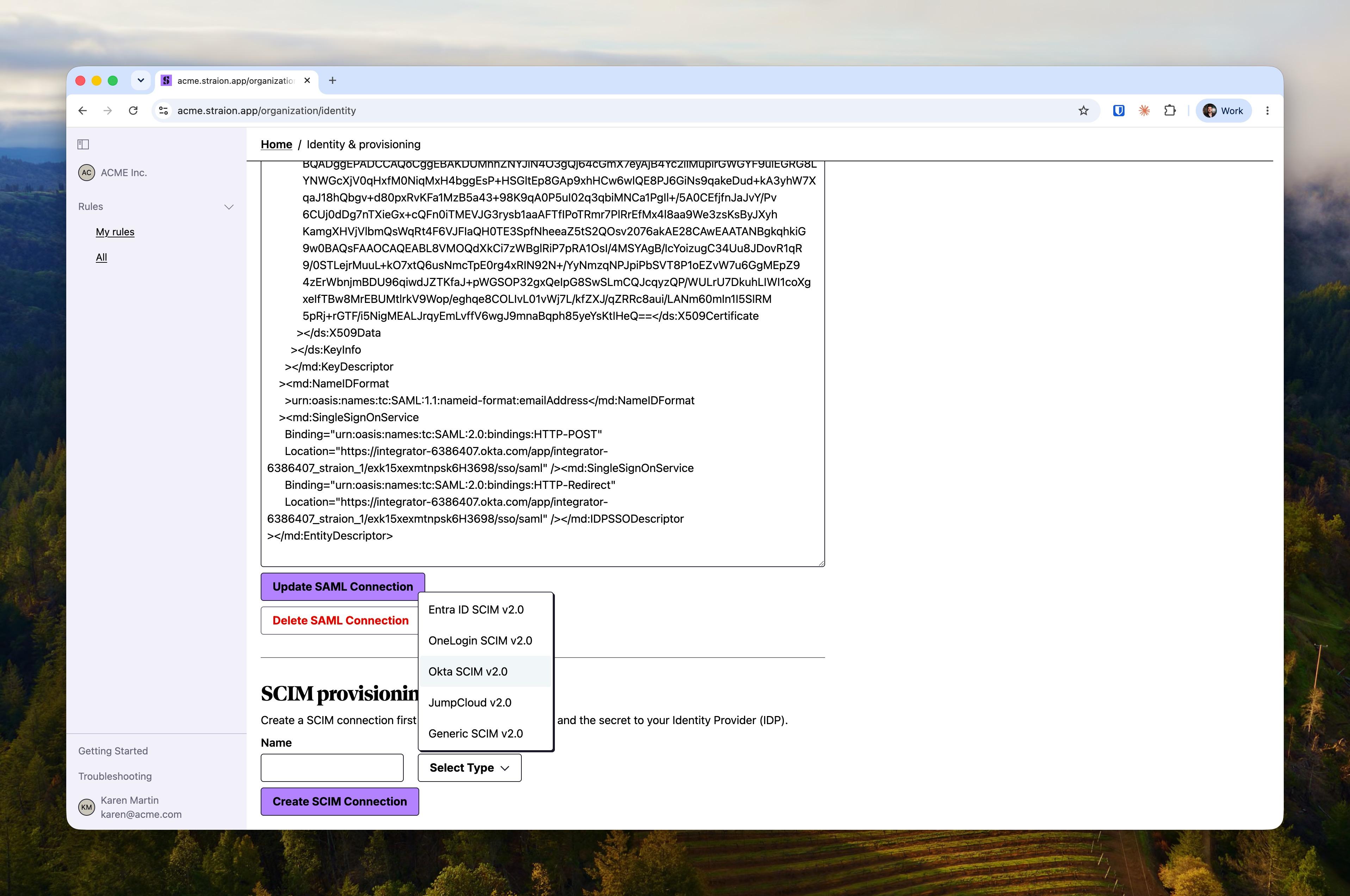
The connection reveals the two values your IdP needs:
- SCIM Endpoint — the base URL your IdP pushes provisioning requests to
- SCIM Secret — the bearer token that authenticates those requests. Treat it like a password; use the copy button to grab it.
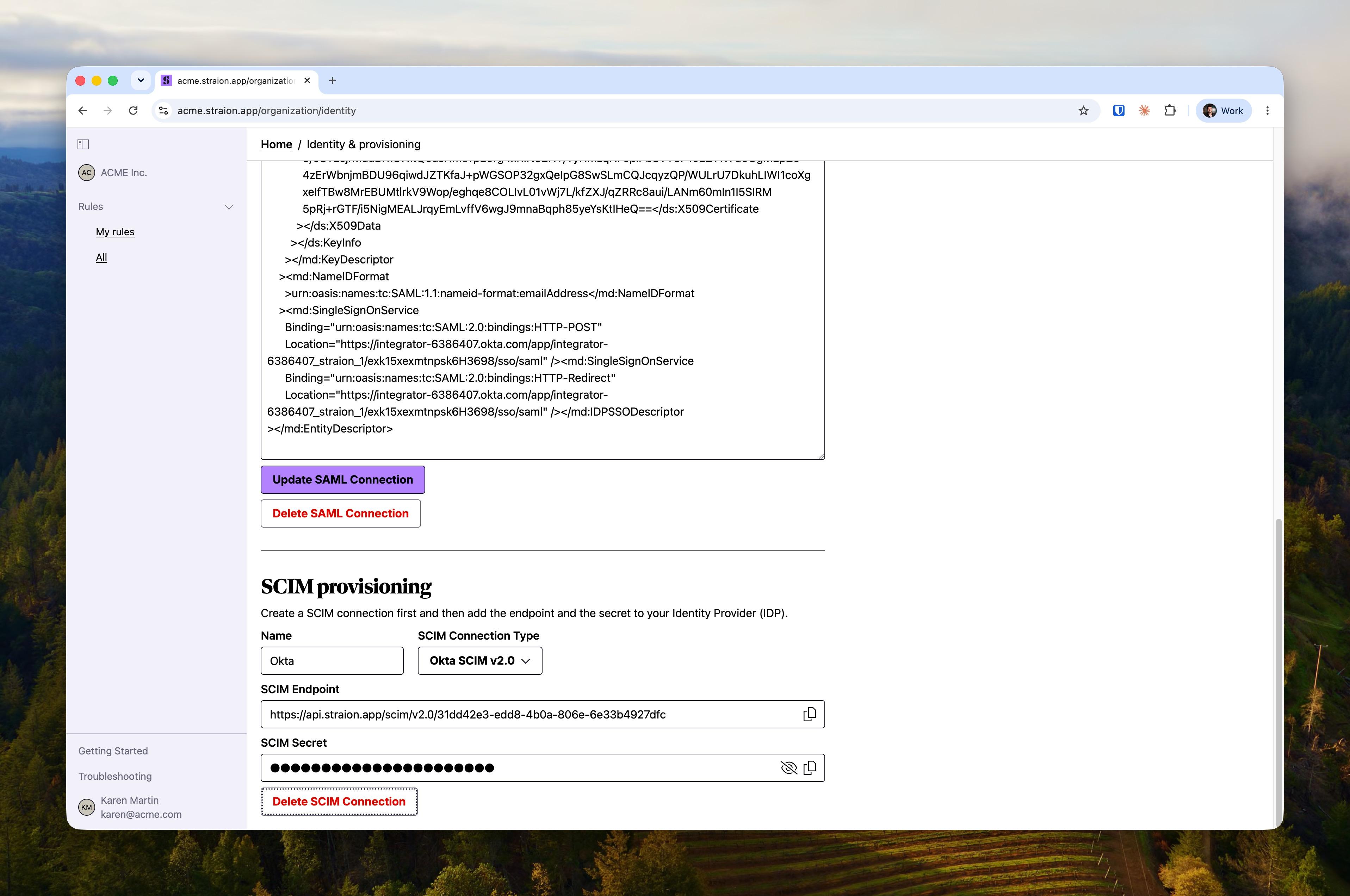
Deleting the connection invalidates the secret immediately. To rotate it, delete the connection, create a new one, and update your IdP with the new values.
2. Configure your identity provider
Okta
On the Straion SAML app you created for SSO:
- On the General tab, click Edit in App Settings, enable SCIM provisioning, and save. A Provisioning tab appears.
- On the Provisioning tab, click Edit under SCIM Connection and enter:
- SCIM connector base URL — the SCIM Endpoint from Straion
- Unique identifier field for users —
userName - Supported provisioning actions — enable Push New Users and Push Profile Updates; leave Push Groups off (groups aren’t synced)
- Authentication Mode — HTTP Header, with the SCIM Secret as the Bearer token
- Click Test Connector Configuration to verify, then save.
- Under Provisioning → To App, enable Create Users, Update User Attributes, and Deactivate Users.
- Assign users (or groups) on the Assignments tab — Okta provisions them into Straion right away.
Microsoft Entra ID (Azure AD)
In your Straion enterprise application:
- Open Provisioning and set the mode to Automatic.
- Under Admin Credentials, enter:
- Tenant URL — the SCIM Endpoint from Straion
- Secret Token — the SCIM Secret from Straion
- Click Test Connection, save, and click Start provisioning.
- Assign users under Users and groups.
Entra ID provisions on a cycle (roughly every 40 minutes), so a new assignment can take up to one cycle to appear. Use Provision on demand to push a single user immediately.
OneLogin
In your Straion app:
- On the Configuration tab, enter the SCIM Base URL (the SCIM Endpoint from Straion) and the SCIM Bearer Token (the SCIM Secret), then click Enable on the API connection.
- On the Provisioning tab, check Enable provisioning and choose which actions require admin approval (or none for fully automatic sync).
- Assign users to the app — OneLogin creates them in Straion.
JumpCloud and other SCIM 2.0 providers
Create the connection with the JumpCloud v2.0 or Generic SCIM v2.0 type and configure your IdP’s SCIM integration with:
- Base / Tenant URL — the SCIM Endpoint from Straion
- Authentication — HTTP header Bearer token, using the SCIM Secret
- Unique identifier — the user’s email address (
userName)
What gets synced
| IdP action | Effect in Straion |
|---|---|
| Assign user to the app | Account created (name + email) and added to your organization |
| Update user profile | Name and email updated |
| Unassign / deactivate user | Member deactivated — access removed immediately |
| Re-assign user | Member reactivated |
Provisioned members appear in User Management with the Provisioned by SCIM flag. Deactivated members are hidden from the default list — use the show deactivated toggle to see them.
Straion doesn’t sync groups yet — assigning a group in your IdP provisions its members as individual users. See groups aren’t showing up.
Troubleshooting
Failed connection tests, users that don’t appear, and deprovisioning questions are covered in SCIM provisioning troubleshooting.